
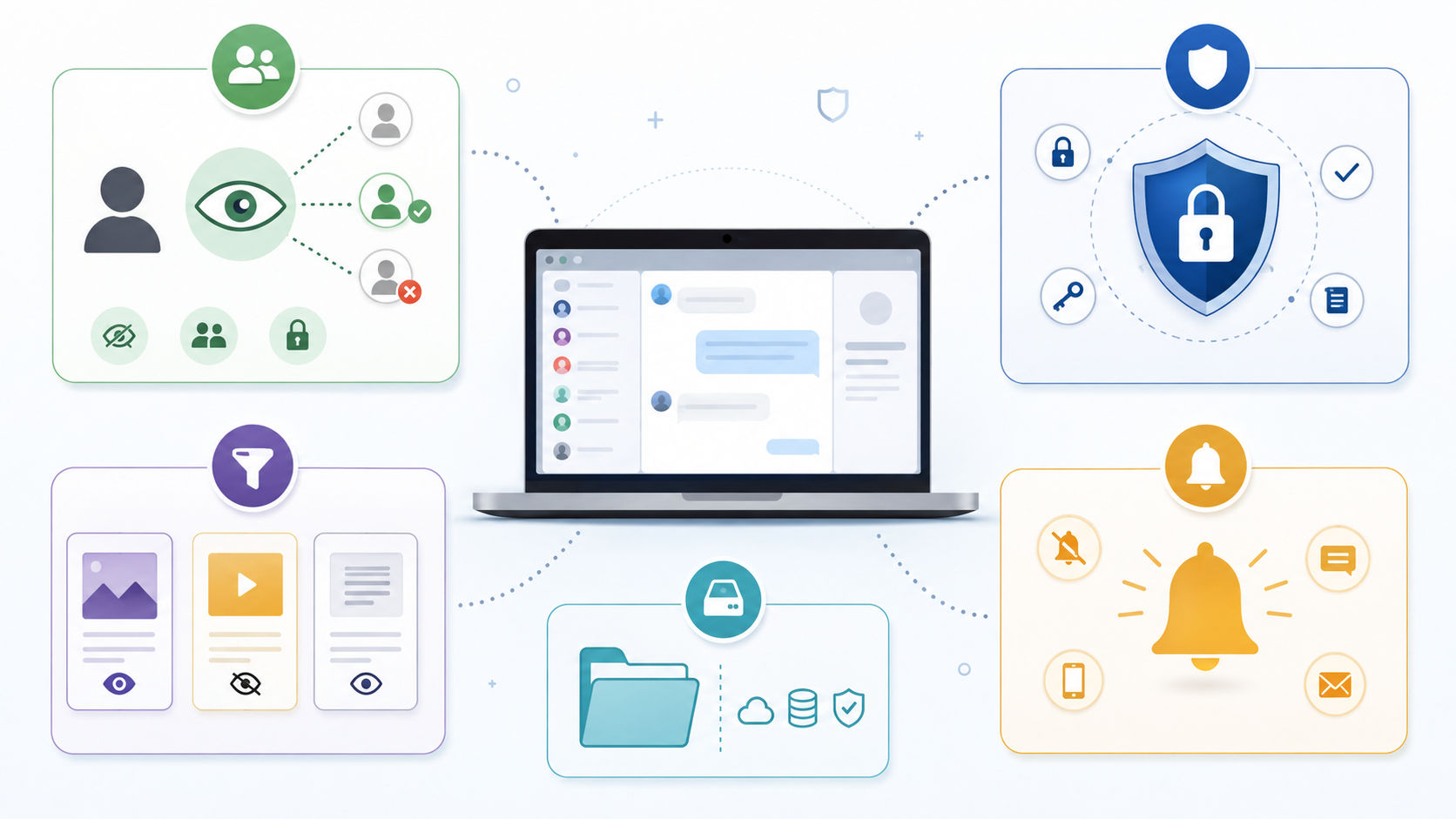
Remote and distributed teams increasingly rely on desktop messaging tools to coordinate hiring, onboarding, project work, and day-to-day collaboration. Privacy settings, security settings, content controls, notifications, and local storage are often grouped together in the same application menu, which can make them appear to solve the same problem.
They do not.
A privacy setting may determine who can see personal account information. A security setting may help protect access. A content-visibility preference may change what categories of material are displayed. A notification setting controls what appears on the computer screen, while storage settings affect what remains on the device.
Those distinctions matter in remote work environments, where conversations may remain open for long periods, screens may be shared during interviews or meetings, and downloaded files can persist on company or personal computers after a session ends.
Rather than searching for one “maximum privacy” switch, teams should review each layer separately and document the settings that match their working environment.
Privacy, Security, Content Visibility and Notifications Are Different
A useful starting point is to separate the major setting categories.
|
Setting Category |
Mainly Controls |
|
Privacy |
Who can see information about you or interact with you |
|
Security |
Who can gain or retain access to the account |
|
Content visibility |
Which categories of content the client displays or filters |
|
Notifications |
What information appears as device alerts |
|
Local storage |
Which media and files remain on the computer |
Changing one category does not automatically change the others.
For example, hiding notification previews does not terminate an old account session.
Changing a content-visibility preference does not protect a Windows account with a password.
Restricting who can see a phone number does not remove files that have already been downloaded to disk.
This separation makes privacy configuration much easier to reason about.
Start With Workplace Account Privacy
Before focusing on content controls, remote workers and teams should review ordinary account privacy and decide what information needs to be visible in a professional environment.
The exact menu names vary by service and client, but common controls include the following.
Phone number visibility
Consider who needs to see the phone number associated with the account.
Public communities, candidate-facing groups, and professional channels do not always require every participant to see personal contact information.
Last-seen or online status
Presence information can reveal more about a user's daily schedule than expected.
Some users prefer broad visibility, while others restrict it to contacts or selected people.
Profile information
Profile photographs, biographies, usernames, and other account information may have separate visibility rules.
Review them from the perspective of a stranger, not only from the perspective of existing contacts.
Calls
If the platform allows voice or video calls, check who can initiate them.
Participation in a professional or recruiting community does not necessarily mean every participant should be able to call directly.
Group or channel invitations
Invitation controls can reduce unwanted additions to unfamiliar groups.
These settings are about interaction and identity exposure. They should not be confused with content filtering.
What Sensitive-Content Settings Actually Control
Sensitive-content preferences generally relate to whether certain content categories are displayed or filtered by the client or service.
That is different from privacy.
Changing a content setting does not make an account anonymous.
It does not encrypt local files.
It does not prevent another person from opening an already unlocked Windows session.
It simply affects content visibility within the limits currently supported by the account, client, platform, and applicable service restrictions.
For that reason, instructions found online should not be treated as universal.
A toggle available on one client may be named differently, placed elsewhere, or unavailable in another environment.
Why the Same Setting May Not Appear Everywhere
Users sometimes assume that a missing option means an application is broken.
There are several less dramatic possibilities.
Client differences
Desktop, web, Android, and iOS applications do not always expose identical settings in identical locations.
Version differences
Menus can change as applications are updated.
An old screenshot may accurately describe an earlier version while being misleading today.
Account or platform restrictions
Some content preferences may not be changeable for every account or client environment.
Distribution-policy differences
Applications distributed through different operating-system or app-store environments may not always expose exactly the same controls.
The practical rule is simple:
troubleshoot the current client rather than assuming a tutorial screenshot must match your screen exactly.
Review Content Preferences Separately
Teams documenting a consistent Windows environment can use the Telegram Windows desktop setup guide as supplementary reference material, then compare those setup notes with the privacy, security, and device controls currently available in their own client.
That comparison matters because privacy and content controls can differ by client, version, account context, and platform policy.
Content controls can change across clients and versions, so users should compare any tutorial with the settings currently visible in their own application.
Avoid instructions that promise one universal sequence for every operating system and every account.
A better process is:
1. identify the current client;
2. confirm that the application is up to date;
3. open its privacy or content settings;
4. review the options actually available;
5. make only the change you understand.
Sensitive-Content Preferences Are Not Security Controls
This distinction deserves emphasis.
A content filter does not replace:
-
a Windows password or PIN;
-
account two-step verification;
-
passkeys where supported;
-
active-session review;
-
device encryption;
-
application-level passcodes;
-
safe handling of login codes.
Users can configure content visibility perfectly and still have poor account security.
Likewise, a well-secured account can still show unwanted content if visibility preferences are not configured appropriately.
Think of the controls as different layers.
Layer 1: Account security
Protects account access.
Layer 2: Account privacy
Controls information exposure and interactions.
Layer 3: Content visibility
Controls what content is shown.
Layer 4: Device privacy
Controls what other people near the computer can see.
Each deserves its own review.
Remote Work Creates Different Desktop Privacy Risks
Messaging on a phone and messaging on a Windows PC are not identical from a workplace privacy perspective.
A phone usually stays physically close to its owner, while a work computer may be connected to larger displays, shared during calls, or left in spaces where other people can see the screen.
A desktop PC may be:
-
used in an office;
-
connected to a large monitor;
-
visible to coworkers;
-
left unlocked at a shared desk;
-
connected to a projector;
-
used temporarily by another employee.
These situations create privacy concerns that content filtering alone cannot solve.
Shared Windows Computers Need Stricter Rules
A shared computer should be treated differently from an individually assigned laptop.
Consider a coworking workstation, reception PC, interview-room computer, temporary project laptop, or office machine used by rotating staff.
The organization should decide:
-
whether persistent sign-in is permitted;
-
whether notification previews should appear;
-
whether media can be downloaded locally;
-
whether the application should launch automatically;
-
how sessions are terminated after use.
The simplest rule is often the best:
if the computer is temporary, account access should also be temporary.
Do not assume that closing the application removes the account session.
Review Active Sessions Regularly
Multi-device messaging is convenient because users do not need to sign in again every time they switch screens.
That convenience also means old sessions can be forgotten.
Review account sessions when:
-
replacing a laptop;
-
losing a phone;
-
selling or recycling hardware;
-
returning company equipment;
-
finishing a temporary project;
-
using a shared PC;
-
noticing unfamiliar account activity.
If a device no longer needs access, remove it.
A device that is no longer physically in front of you should not automatically remain trusted forever.
Notification Previews Can Reveal More Than Expected
One of the most overlooked desktop privacy settings is the notification preview.
A message can appear even when the application itself is minimized.
Consider what happens when a notification arrives while:
-
the laptop is connected to a projector;
-
a coworker is standing nearby;
-
the Windows lock screen is visible;
-
the computer is being used at a shared desk;
-
screen sharing is active.
Even a short preview may expose:
-
a person's name;
-
a group name;
-
part of a conversation;
-
a project reference;
-
a private photograph.
People working with candidate data, client information, internal projects, or other confidential material should consider whether notification previews are necessary.
The best setting depends on context, but the decision should be intentional.
Sensitive Media Can Remain on Disk
Content visibility inside the application is only part of the privacy picture.
Once media has been downloaded, a copy may remain locally even if the user later changes content settings.
Potential storage locations include:
-
the Windows Downloads folder;
-
an application-specific download folder;
-
temporary storage;
-
cached media;
-
project directories where files were manually copied.
This creates an important distinction:
changing what the application displays does not necessarily delete files that already exist on the computer.
Users who change sensitive-content preferences should therefore review local storage separately if privacy is the reason for the change.
Configure Automatic Downloads With Privacy in Mind
Automatic downloads are usually discussed as a storage or bandwidth issue, but they can also affect privacy.
A desktop client configured to automatically save every image and video may create local copies of content the user never deliberately opened.
That matters more on:
-
shared PCs;
-
employer-owned computers;
-
computers backed up automatically;
-
devices used by multiple family members;
-
systems with broad file-search indexing.
A more deliberate configuration can limit automatic media saving in high-volume groups or channels; Teams reviewing how messaging tools fit into a broader work environment can use a Paper Plane desktop workflow guide as supplementary context for desktop configuration and day-to-day usage, while internal privacy and access policies should remain the primary standard.
There is no universal storage or download setting that suits every workplace.
The goal is to understand what the application is saving and whether that behavior fits the device, account, and data-handling policy.
Be Careful With “Unlock” Tutorials
Searches involving sensitive-content settings often produce aggressive promises:
-
unlock everything;
-
remove every restriction;
-
bypass any limitation;
-
install this special client;
-
run this script;
-
download this modified application.
Approach these instructions cautiously.
A legitimate account preference should not normally require giving an unknown website:
-
your login verification code;
-
a two-step verification password;
-
account recovery credentials;
-
remote access to your computer.
Nor should users install an unfamiliar modified application simply because it claims to expose a missing setting.
The risk of compromising an account is greater than the inconvenience of investigating the setting properly.
Troubleshoot Missing Content Controls Methodically
When a sensitive-content option is missing or behaves differently than expected, use a controlled troubleshooting process.
1. Identify the current client
Determine whether you are using:
-
desktop;
-
web;
-
iOS;
-
Android;
-
another supported client.
Do not follow instructions for a different platform without checking compatibility.
2. Check for updates
An outdated client may have menus that differ from current documentation.
3. Review the current privacy and security menus
Look at the options actually available rather than relying only on screenshots from a tutorial.
4. Compare with another supported client if appropriate
If an option is absent on one device, checking another client can help determine whether the difference is platform-specific.
5. Respect account or platform restrictions
If the service does not permit a setting to be changed in the current environment, repeatedly reinstalling unknown software is not a safe solution.
If the setting still differs from a tutorial after those checks, treat the discrepancy as a client or platform difference rather than a reason to install an unfamiliar build.
Multilingual Teams: Separate Language From Privacy Behavior
Distributed teams often work in bilingual or multilingual software environments.
One employee may run Windows in English while communicating with colleagues or candidates in Traditional Chinese; another may prefer a localized interface throughout the operating system and messaging client.
Interface language changes the words used to describe settings. It does not necessarily change what the underlying privacy control does.
For remote teams, the important question is what a control does, not the language used to label it.
For example, the location or translated name of a privacy control may differ, but users should still think in terms of its function:
-
who can see information;
-
who can contact the account;
-
what content is visible;
-
which devices retain access;
-
what information is stored locally.
This functional approach is more reliable for distributed teams than memorizing one translated menu path.
Do Not Forget the Windows Account
Teams sometimes configure messaging-app privacy carefully while leaving the computer itself poorly protected.
Desktop privacy starts with the operating system and the organization’s device-access practices.
Basic precautions include:
-
using a Windows sign-in PIN or password;
-
locking the screen when leaving the desk;
-
restricting other people's accounts appropriately;
-
keeping the operating system updated;
-
using device encryption where suitable;
-
avoiding unnecessary administrator access.
An application cannot keep a conversation private from someone who has unrestricted access to the entire Windows account.
A Practical Desktop Privacy Checklist for Remote Teams
Use the following checklist when reviewing a messaging application used for remote, recruiting, or distributed work.
Account privacy
-
Who can see the phone number or other contact information?
-
Who can see online or last-seen status?
-
Who can initiate calls?
-
Who can add the account to groups?
-
Is profile information appropriately restricted?
Account security
-
Is additional account protection enabled where appropriate?
-
Are recovery methods current?
-
Have active sessions been reviewed?
-
Are old devices still connected?
Content visibility
-
Are sensitive-content preferences understood?
-
Are the options available on this particular client?
-
Is the user following current rather than outdated instructions?
Notifications
-
Do previews display message text?
-
Are notifications visible on the lock screen?
-
Could messages appear during screen sharing or presentations?
Local storage
-
Where are downloaded files stored?
-
Is automatic media downloading appropriate?
-
Does sensitive material remain in Downloads or cache folders?
-
Is this a shared or individually assigned computer?
Device access
-
Is Windows protected by an appropriate sign-in method?
-
Does the screen lock automatically?
-
Should the messaging application remain signed in?
Reviewing these categories separately produces a much clearer workplace privacy picture than searching for a single “privacy mode.”
Final Takeaway
For remote teams, privacy controls, security settings, content-visibility preferences, notifications, and local storage solve different problems.
Privacy settings influence who can see information about you and interact with you.
Security controls help protect access to the account.
Content settings influence which categories of material the client displays.
Notification settings affect what people nearby may see.
Storage settings determine what remains on the computer.
A well-configured desktop messaging client requires attention to all of them, especially when the same account is used across home offices, company devices, and temporary workspaces.
The safest approach is not to search for a universal “unlock” or “maximum privacy” switch. Teams should understand each control, change only what is necessary, and review the device itself as carefully as the application running on it. A short, repeatable privacy standard is easier for distributed employees to follow than a collection of one-off fixes.